
Windows XP Fake Update
Installing Windows Updates... 0%
Do not turn off or unplug your computer.
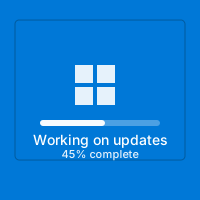
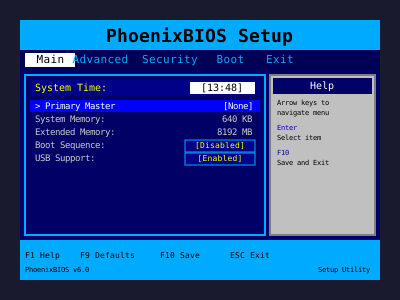
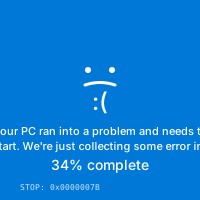
🪟 Windows XP Update Simulator
Relive the glory days of chunky progress bars, serif headers, and the never-ending “Installing update 13 of 57.”
💙 Authentic Retro UI
We recreated the exact blue gradient, white text, and Windows flag animation from early-2000s installers.
The progress text lists individual KB numbers, the status bar pulses with a subtle diagonal highlight, and the “Do not turn off or unplug your computer” warning sits ominously at the bottom. An optional tooltip pops up to say “Performing cleanup…” for that extra throwback joy.
🎨
Classic Gradient
Exact Pantone-matched blues evoke CRT monitors and Bliss wallpaper nostalgia.
🧮
Detailed Steps
Shows “Step 3 of 5” plus individual KB install lines to keep onlookers reading.
📀
CD-ROM Sounds
Optional drive whirs and chimes replicate patch nights circa 2004.
🖼️
Bliss Wallpaper Reveal
After you exit, fade into the classic green hills to cap the nostalgia.
🎯 Favorite Ways To Use It
- Retro Themed Parties: Display it on an old LCD so guests think the “exhibit PC” is busy patching.
- Tech Talks: Kick off a presentation about OS history with a throwback update screen.
- YouTube B-Roll: Overlay footage of the XP update while narrating about security patches.
- Family Nostalgia: Show parents who survived dial-up updates and observe their nostalgia (or cringe).
🚀 Quick Setup
1
Fullscreen
Press F11 to hide the modern browser frame.
2
Add Audio
Play the Windows XP startup chime quietly before showing the screen.
3
Stage Props
Plug in an old ball mouse or beige keyboard for authenticity.
4
Let It Crawl
Percentages creep slowly—mention “Service Pack” to keep people invested.
5
Reveal Bliss
Exit fullscreen, show the Bliss wallpaper, and bask in the nostalgia wave.
🧠 Cultural Impact
Windows XP updates defined early PC patience. Dial-up downloads, late-night restarts, and complex service packs were rites of passage. This simulator lets younger users experience that mix of anticipation and surprise.
🧾 Tips
- Add Commentary: " Installing updates for system compatibility” for nerd cred.
- Use CRT Filters: Film the screen with a slight moiré pattern for authenticity.
- Chain With XP Sounds: After the “update,” play the Windows error ding for comedic timing.
- Time Capsules: Pair with a slideshow of XP-era screenshots for parties.
❓ FAQ
Does this run on modern OSes?
Yes. Any browser can display it, even on macOS or Linux.
Can I change the KB numbers?
Absolutely—edit the text nodes to reference your own “updates.”
Is there a fake reboot?
After you click “Restart Now,” the Bliss wallpaper fades in, mimicking a boot cycle.
Does it loop?
Yes. Leave it running indefinitely; it never reaches 100% unless you command it to.
🎵 Soundtrack Suggestions
Queue classic Windows audio—the startup flourish, the shutdown swoop, or the error ding—to accompany different phases of the fake update. The nostalgia overload makes everyone grin.
🧩 Trivia Challenge
While the bar crawls, quiz friends on XP lore: “What year did Service Pack 2 drop?” “What was the codename?” Turn waiting time into a mini game show.
📗 Storytime Prompts
Encourage everyone nearby to share their favorite XP anecdotes: first LAN party, scariest virus, weirdest Clippy encounter. The simulator becomes a conversation starter rather than just a gag.
- Patch Roulette: Write random KB numbers on sticky notes and let friends invent what each update supposedly fixed.
- Office Flashback: Ask elders to explain what “defragging” meant and why they scheduled updates overnight.
🏛️ Pop-Up Museum Idea
Arrange relics—install CDs, beige mice, AOL trial discs—around the screen and label them like artifacts. Visitors move between the objects while the update bar trudges along, transforming your prank into a tactile exhibit about early-2000s computing.
🎤 Oral History Booth
Set a voice recorder next to the display and invite guests to share their favorite XP memory while the “update” runs. Edit the clips into a podcast-style montage later. You’ll capture authentic stories about LAN parties, Napster downloads, and first coding projects.
🧮 Then vs. Now Breakdown
Create a poster comparing XP-era hardware specs to modern machines. As the fake update crawls, highlight how 512 MB of RAM once felt luxurious and 56k modems defined patience. The juxtaposition makes the prank educational for younger viewers.
🏢 Data Center Cosplay
Set up cardboard “server racks” beside the monitor and pretend you’re a midnight admin chasing service packs. Clip on a fake badge, carry a flashlight, and whisper status updates into a walkie-talkie for cinematic vibes.
👨👩👧 Family Challenge
Turn the progress bar into a trivia countdown. Ask each family member a question about early 2000s pop culture before the percentage bumps up. Whoever answers correctly gets to control the “restart now” button.
🎞️ Patch Night Reenactment
Stage the five phases of a 2003 update marathon:
- Coffee Brewing: Someone pretends to make instant coffee while muttering about Service Pack 2.
- Driver Hunt: Dump a folder of imaginary drivers on the desk and search for the right CD.
- Progress Watch: Sit in folding chairs facing the screen, cheering when it hits each milestone.
- Reboot Prayer: Hold hands, chant “Please boot,” and press Enter together.
- Victory Lap: Blast the XP startup sound and throw confetti when the Bliss wallpaper appears.
🗺️ Upgrade Roadmap Storyboard
Sketch a fictional corporate migration plan and narrate it while the update creeps along. Mention change-freeze windows, backup tapes being couriered to offsite vaults, and executives impatiently refreshing their BlackBerry email. The extra lore makes the prank feel like part of a docuseries.
🎨 Scrapbook Session
Print faux screenshots of XP dialog boxes, glue them into a notebook, and let friends annotate them while the progress bar crawls. Encourage doodles of CRT monitors, AIM chats, and dial-up modems beside each panel. By the time the prank ends, you have a collaborative zine celebrating the era—as meaningful as the laugh itself.
📰 Nostalgia Newsletter
Compile everyone’s favorite XP-era memories into a single-page “service bulletin” once the prank wraps. Include quotes, doodles, and a top-five list of software you never want to reinstall again. Share the PDF afterward so the prank leaves behind a keepsake.
📼 VHS Transfer Booth
Set a camcorder or phone to record the screen in glorious low resolution, then export the footage with a VHS filter. Sending the edited clip later makes the prank feel like a recovered artifact from 2003.
🛡️ Keep It Light
Even though XP is vintage, data considerations remain timeless. Use the prank to reminisce, not to stall real work indefinitely. Share the link, trade stories, and let others relive the experience.
Common Use Cases:
Film & Video Production
Use authentic interface simulations as background visuals and set dressing in film and video production. Perfect for any scene requiring computer screens.
- Cinematic computer screen effects
- Movie and commercial production backgrounds
- Professional visual content creation
Educational & Security Training
Use interface simulations for cybersecurity awareness training and educational demonstrations in schools and corporate settings.
- IT security awareness programs
- Computer science education demonstrations
- Technology history classroom materials
Stream & Content Overlays
Add professional interface elements and visual effects to Twitch streams, YouTube videos, and other content creation platforms.
- Stream overlays and visual effects
- YouTube video production content
- Professional streaming backgrounds
UI/UX & Design Reference
Study and reference authentic operating system interfaces, terminal designs, and error message layouts for UI/UX design and development projects.
- Interface design reference materials
- Developer learning and experimentation
- Historical technology study
Retro Computing & Nostalgia
Explore and experience authentic recreations of classic operating systems and interfaces. Perfect for tech enthusiasts and nostalgic exploration.
- Experience classic OS designs
- Technology history exploration
- Retro tech appreciation
Web Development Learning
Explore advanced web development techniques, creative coding patterns, and interactive visual effects for professional projects.
- Advanced CSS and JavaScript techniques
- Interactive animation patterns
- Professional effect development
How to Use These Simulations
Follow these simple steps to get the most out of our interface simulations
1
Choose Your Simulation
Browse our collection of high-fidelity interface simulations and select one that matches your creative or educational needs. From classic OS designs to modern system interfaces, pick what fits your project.
2
Open in Your Project
Launch the simulation on the device where you need it. You can open it on your own device for review, or integrate it into your creative project, presentation, or educational material.
3
Enjoy the Simulation
Experience the authentic visual effects and immersive interface. Explore the interactive elements and appreciate the high-fidelity recreation of classic or modern computing interfaces.
4
Exit Anytime
You can exit the simulation at any time by pressing ESC or F11. All simulations run entirely in your browser with no system interaction or device modifications.
5
Share Responsibly
If you record or share content featuring these simulations, do so responsibly. Always credit PranxWorld and disclose that these are visual simulations for educational or creative purposes.
6
Explore More
Try different simulations! Each one offers unique visual effects and interface experiences. Mix and match to find the perfect simulation for your needs.
💡 Professional Tips for Best Results:
- Full screen for immersion - Press F11 for maximum visual impact in presentations or video production
- Use in appropriate contexts - Best suited for film production, streaming, education, and creative projects
- Transparency matters - Clearly disclose that these are simulations when used in any public-facing content
- Obtain consent - If used in live demonstrations or recordings, ensure all participants are informed and consent
- Test beforehand - Verify compatibility and appearance on your target device and browser
- Respect boundaries - Use only in appropriate professional and educational settings