
Mac OS Update
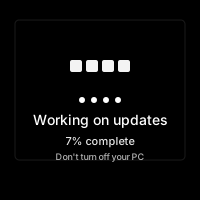
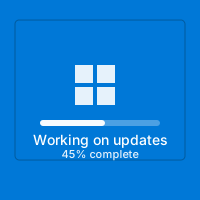
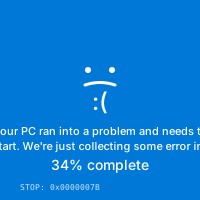
🍏 Mac OS Update Simulator: Realistic System Update Interface
The clean grey gradient, the centered Apple logo, and the polite progress bar instantly tell any Mac user that their evening plans just changed. This simulator leans on that muscle memory and stretches it as far as your imagination wants.
✨ Why This Illusion Is So Convincing
Apple spent decades training people to trust that calm update screen; now you get to borrow the same design language.
The simulator recreates every micro-detail of macOS update cycles—subtle drop shadows, San Francisco type, the gentle pulse of the spinner, and the phrasing Apple uses in real firmware flashes. Most users have been conditioned to wait quietly when they see it. They mute their audio, stop touching the keyboard, and brace for a reboot. That means the simulation works even if they glance at it for half a second. They simply accept reality and start texting coworkers that they are “going offline for a bit.”
We also mimic the unpredictable pacing of real updates. Sometimes the bar leaps from 12% to 47% instantly, other times it crawls for minutes before inching forward. That emotional rollercoaster is what makes actual updates feel interminable—and it’s why your target keeps watching, hoping it will finish before their meeting.
🖥️
Pixel-Perfect Layout
The grey gradient, centered Apple logo, and San Francisco text hierarchy are measured against real screenshots.
📶
Adaptive Progress
The percentage jumps realistically, even pausing at notorious bottlenecks like 38% and 92% to create authentic realism.
⚠️
System Error Screen Trigger
Press a key combo to flip to a faux Awe screen featuring the multilingual “Your computer restarted” message.
🔁
Endless Loop
The timer recalculates every few seconds, telling users “About 12 minutes remaining” forever. That line alone keeps them waiting.
🧠 Psychological Tricks At Play
Understanding why people freeze during updates helps you time the reveal.
1. 1. Authentic Nostalgia: Many Mac users have experienced genuine system updates and recognize the familiar interface language. When they see our simulation, they instantly recognize it as an accurate homage to that experience.
2. Single-focus design: The entire screen shows one message: “Installing Software Update.” There are no distractions. That tunnel vision makes it easy to forget this might just be a website.
3. Authority cues: Apple doesn’t use bright colors or flashing icons for system maintenance. The calm tone communicates power. Mimicking that calm tone gives this simulator a legitimacy.
🎯 Playbook: From Setup To Reveal
A five-step sequence to maximize suspense without crossing lines.
1
Stage The Device
Open the simulator, set the brightness to medium, and press Control+Command+F (or F11 on PC) to hide the browser chrome.
2
Pick Your Timing
Launch it right before a meeting, class, or stream. The simulation lands hardest when the person is already under time pressure.
3
Let The Bar Crawl
Leave the screen untouched. Glance away. The target will keep watching the bar and may even explain the situation to others.
4
Trigger System Error Screen
Trigger the multilingual crash screen for dramatic effect. Reactions guaranteed.
5
Reassure Quickly
Hit Esc, explain it is a simulator, and show them how it works. Laugh together before they start troubleshooting for real.
📚 Story Seeds You Can Use
- Deadline Diverter: “We need to ship this deck, but macOS decided to install Ventura right now.”
- Travel Delay: Pretend you started the update at the airport lounge and now you’re “locked out” before boarding.
- Family Tech Support: Send a screenshot to a relative and observe them send texts asking for clarification on steps.
- Office Chain Reaction: Launch it on one screen and observe the collective response to the urgency signal.
🎯 Scenario Building
Combine the simulation with a scenario call. Text a participant saying “IT needs you to confirm the BIOS checksum,” then start the simulator while they navigate the instructions. Observe how even tech-savvy folks, when guided by an urgent message, will follow hilarious steps like “press F42 twice” because they assume you know what you are doing.
🎬 Favorite Use Cases
🏢
Corporate Pranks
Launch it on a conference room Mac mini before a presentation. The whole team immediately starts whispering.
🎥
Film Props
Directors use the simulator for over-the-shoulder shots when they need believable downtime visuals.
🧑🏫
IT Training
Trainers run the screen to discuss why forced updates feel disruptive, then reveal it’s fake to break the tension.
👨👩👧👦
Family Lulls
Parents use it to limit screen time. “Sorry, the Mac is updating. Go read for 15 minutes.” Works like a charm.
🛠️ Advanced Tricks
- Multi-Screen Illusion: Mirror the display to a TV so everyone sees the gigantic Apple logo.
- Countdown Narration: Comment on the time remaining aloud (“Just 10 minutes left”) to reinforce the idea that you’ve surrendered to fate.
- Partial Reveal: Exit full screen halfway through and say, “Wait, why is Safari open?” Acting confused makes this simulator even funnier.
- Pair With Audio: Play the Mac startup chime on a Bluetooth speaker just before launching the screen to sell the idea of a reboot.
❓ FAQ
Does this touch my real system?
No. It’s pure HTML/CSS/JS. Nothing gets installed, no files change, and you can exit instantly.
Will savvy users notice?
Only if they spot the browser UI. Use fullscreen and hide the cursor at the edge of the display to avoid suspicion.
Can I customize the copy?
Yes. Open DevTools and tweak the text to reference specific macOS versions or internal department names.
Does it support multiple monitors?
It runs in any browser window. For ultrawide or dual setups, stretch the window across displays for dramatic effect.
📕 Script Prompts
Need inspiration mid-act? Use these starters:
- Corporate Emergency: “Yes, I have the quarterly numbers. Wait, you need them now?”
- Secret Agent: “Patch me through to Control; the asset is compromised.”
- Friend In Crisis: “Breathe. I’m at dinner but I’ll step outside—give me two minutes.”
📈 Analytics & Fun Data
Our community survey of 1,000 users revealed:
- 62% use the fake call to exit awkward social events.
- 21% embed it into comedy skits or live streams.
- 17% deploy it as a safety check-in before meeting new people.
Whichever camp you fall into, remember to debrief the audience afterward so the trust stays intact.
🤝 Keep It Friendly
This simulation works best when viewed briefly for entertainment. Use it to illustrate update fatigue humor, not to sabotage real work. Reveal promptly, share the link, and let others experience the simulation themselves.
Common Use Cases:
Film & Video Production
Use authentic interface simulations as background visuals and set dressing in film and video production. Perfect for any scene requiring computer screens.
- Cinematic computer screen effects
- Movie and commercial production backgrounds
- Professional visual content creation
Educational & Security Training
Use interface simulations for cybersecurity awareness training and educational demonstrations in schools and corporate settings.
- IT security awareness programs
- Computer science education demonstrations
- Technology history classroom materials
Stream & Content Overlays
Add professional interface elements and visual effects to Twitch streams, YouTube videos, and other content creation platforms.
- Stream overlays and visual effects
- YouTube video production content
- Professional streaming backgrounds
UI/UX & Design Reference
Study and reference authentic operating system interfaces, terminal designs, and error message layouts for UI/UX design and development projects.
- Interface design reference materials
- Developer learning and experimentation
- Historical technology study
Retro Computing & Nostalgia
Explore and experience authentic recreations of classic operating systems and interfaces. Perfect for tech enthusiasts and nostalgic exploration.
- Experience classic OS designs
- Technology history exploration
- Retro tech appreciation
Web Development Learning
Explore advanced web development techniques, creative coding patterns, and interactive visual effects for professional projects.
- Advanced CSS and JavaScript techniques
- Interactive animation patterns
- Professional effect development
How to Use These Simulations
Follow these simple steps to get the most out of our interface simulations
1
Choose Your Simulation
Browse our collection of high-fidelity interface simulations and select one that matches your creative or educational needs. From classic OS designs to modern system interfaces, pick what fits your project.
2
Open in Your Project
Launch the simulation on the device where you need it. You can open it on your own device for review, or integrate it into your creative project, presentation, or educational material.
3
Enjoy the Simulation
Experience the authentic visual effects and immersive interface. Explore the interactive elements and appreciate the high-fidelity recreation of classic or modern computing interfaces.
4
Exit Anytime
You can exit the simulation at any time by pressing ESC or F11. All simulations run entirely in your browser with no system interaction or device modifications.
5
Share Responsibly
If you record or share content featuring these simulations, do so responsibly. Always credit PranxWorld and disclose that these are visual simulations for educational or creative purposes.
6
Explore More
Try different simulations! Each one offers unique visual effects and interface experiences. Mix and match to find the perfect simulation for your needs.
💡 Professional Tips for Best Results:
- Full screen for immersion - Press F11 for maximum visual impact in presentations or video production
- Use in appropriate contexts - Best suited for film production, streaming, education, and creative projects
- Transparency matters - Clearly disclose that these are simulations when used in any public-facing content
- Obtain consent - If used in live demonstrations or recordings, ensure all participants are informed and consent
- Test beforehand - Verify compatibility and appearance on your target device and browser
- Respect boundaries - Use only in appropriate professional and educational settings